Enabling 2FA on a Different Device
In this section, we review how to set up two-factor authentication (2FA) on a different device when you already have it enabled in your Managed Services account.
To properly set up two-factor authentication, complete the following tasks:
-
Log in to the Managed Services Platform.
-
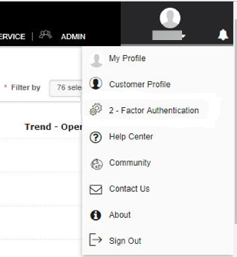
At the top right of the login page, click on the arrow that appears next to your username. A drop-down menu appears.
-
Click on 2-Factor Authentication. A dialog box appears, and displays the status of your 2-Factor Authentication settings.
Note: Since you are moving your 2FA account to a different device, the Status field should be set to ON.
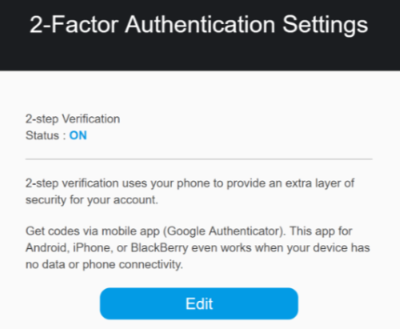
2FA Enabled Authentication Settings
-
Click the Edit button to update your settings.
-
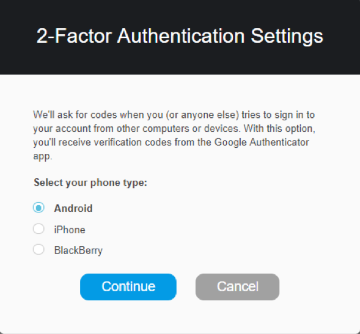
In the next dialog box that appears, select your mobile device type. For example:
-
Click Continue.
-
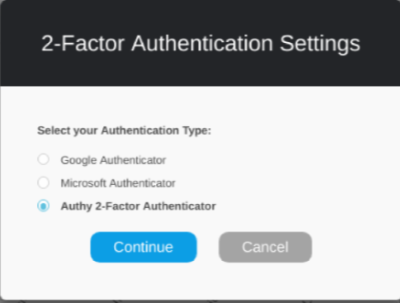
Select your authentication type. For example:
-
Before you continue, check to make sure that the secondary authentication system is installed on your new mobile device.
Note: If you don't have a 2FA authenticator application installed on your phone, you must set it up by downloading it from either the Google Play store or Apple's App Store.
-
Once your 2FA authenticator application has been installed on your new mobile device, enter the six-digit verification code generated by your application and Managed Services account password.
Note: This information should be entered in the fields at the top of the dialog box.
-
Enable the Also clear my 2-step verification settings box. For example:
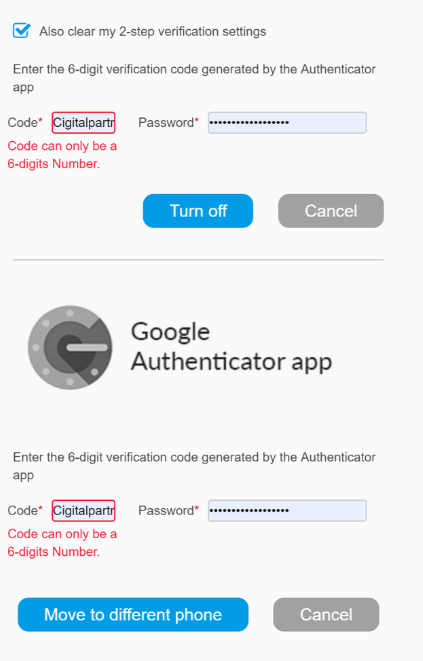
Dialog Box when Moving 2FA Enabled Authentication Settings
-
Click Turn off.
This turns off the 2FA authenticator application on your old device.
-
At the bottom of the same dialog box, enter the six-digit verification code that is generated by the authenticator application and re-enter your Managed Services password.
-
Click Move to different phone.
This moves your Managed Services 2FA account and settings from your old device to your new device. You will be asked to enter your 2FA verification code, along with your account ID and password, the next time you log in to the Managed Services portal.
Parent topic:Setting Up 2-Factor Authentication