Updating a Role
A user's role can be updated or removed from the ADMIN tab in the Managed Services page.
To edit or update an existing user role, perform the following steps:
-
Click on the ADMIN tab at the top of the Managed Services page.
-
Click on the Roles panel.
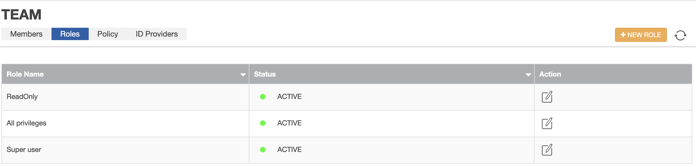
A list of existing roles should display.
-
From the list of existing roles, find the role you want to update or remove.
-
Under the Action column for the role, click the Edit icon. The edit icon looks like this:

-
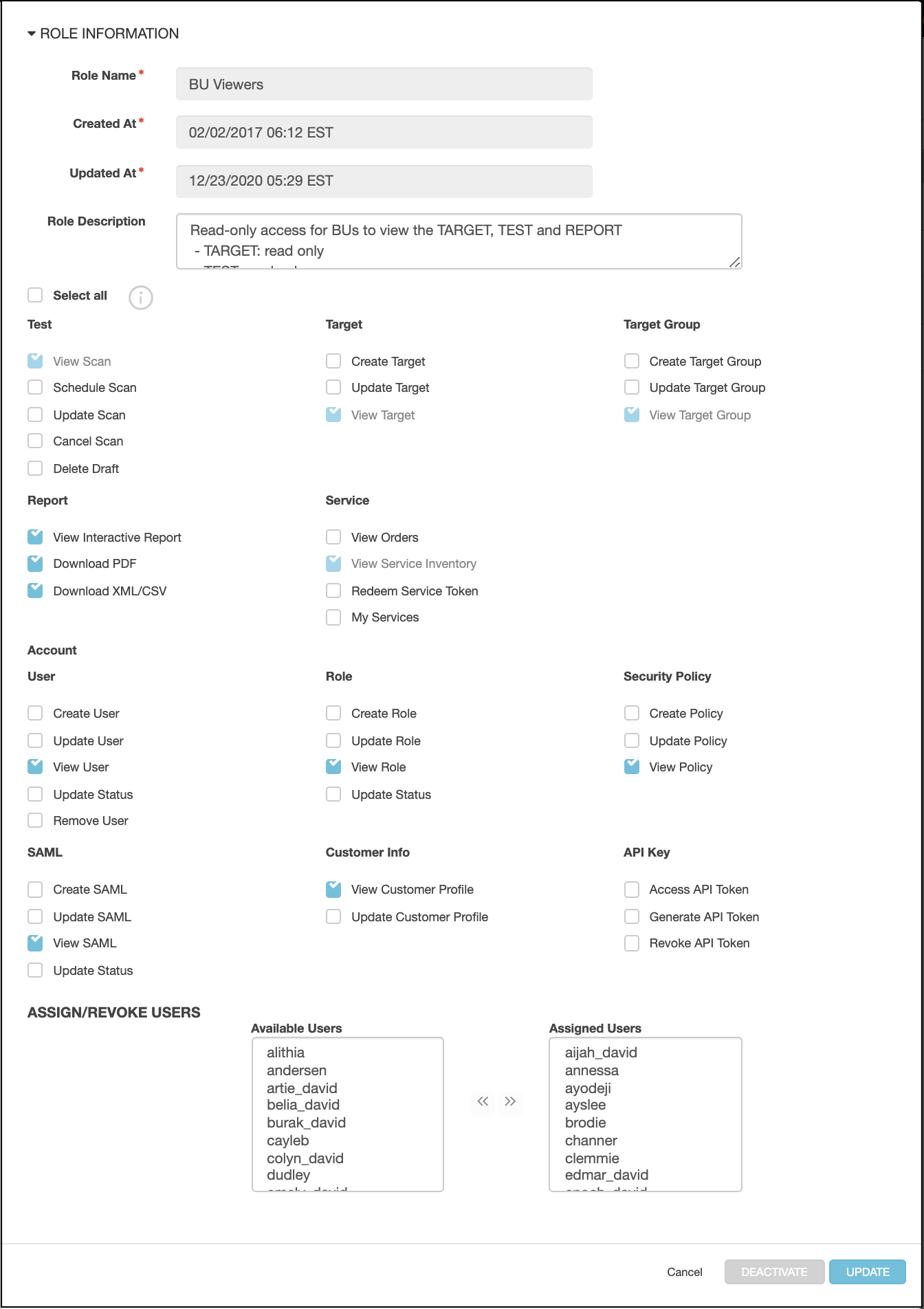
Edit the information that you'd like to update.
-
Once you have updated the information, click Update.
-
If you want to update a user's role, do one of the following:
- To deactivate a role, click the DEACTIVATE button in the Role Information dialog.
- To activate or reactivate a role, click the ACTIVATE button in the Role Information dialog.
- To assign a role, select the user(s) from the Available Users list and click on the double arrow icon to move the user(s) into the Assigned Users list.
- To revoke a role, select the user(s) from the Assigned Users list and click on the double arrow icon to move the user(s) back into the Available Users list.
Note: Multiple roles can be created and assigned to one user. However, the role with the highest level of access prevails.
Parent topic:Administration