Sharing Form Links
Test scheduling forms are accessible to both users and non-portal users through the link sharing feature. Once you've filled out the email and added a comment about the non-portal user, the Managed Services Platform sends an email to the recipient. They will then appear in the list of Non-portal users.
The link sharing feature also allows non-portal users to preview and fill out test scheduling forms without requiring a Managed Services Platform account.
Note: Before you share this link, you must create a draft test scheduling form.
To create a draft test, navigate to Test > Schedule New Test, and save the new form as a draft. Once you've saved the test scheduling form as a draft, navigate to Test Info > Draft Tests.
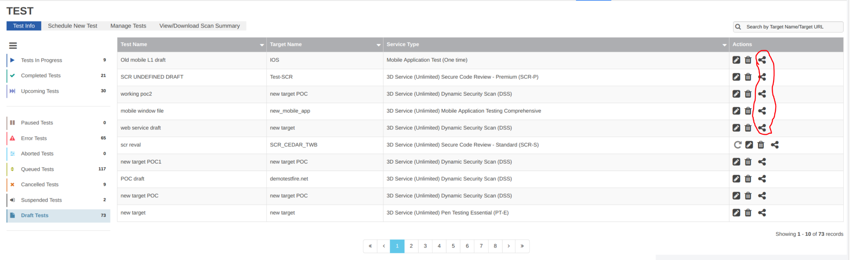
The Draft Tests panel lists all of the test forms that have been saved as drafts.
The Share Link icon allows you to fill out information about the non-portal user.

To share the test scheduling form link with the non-portal user, click the Share Link icon.
The Share Link dialog should appear, allowing you to add the non-portal user's email information, as well as any comments.
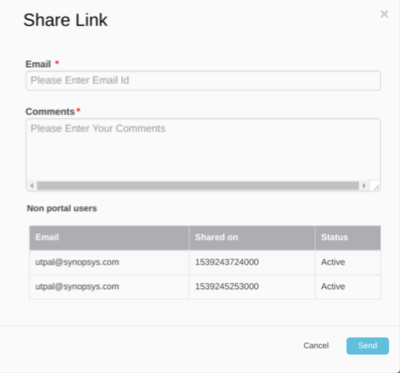
Once you've filled out the non-portal user's information in the Share Link dialog, click Send.
Upon receiving the email, the non-portal user will see the Update page with the draft test scheduling form.
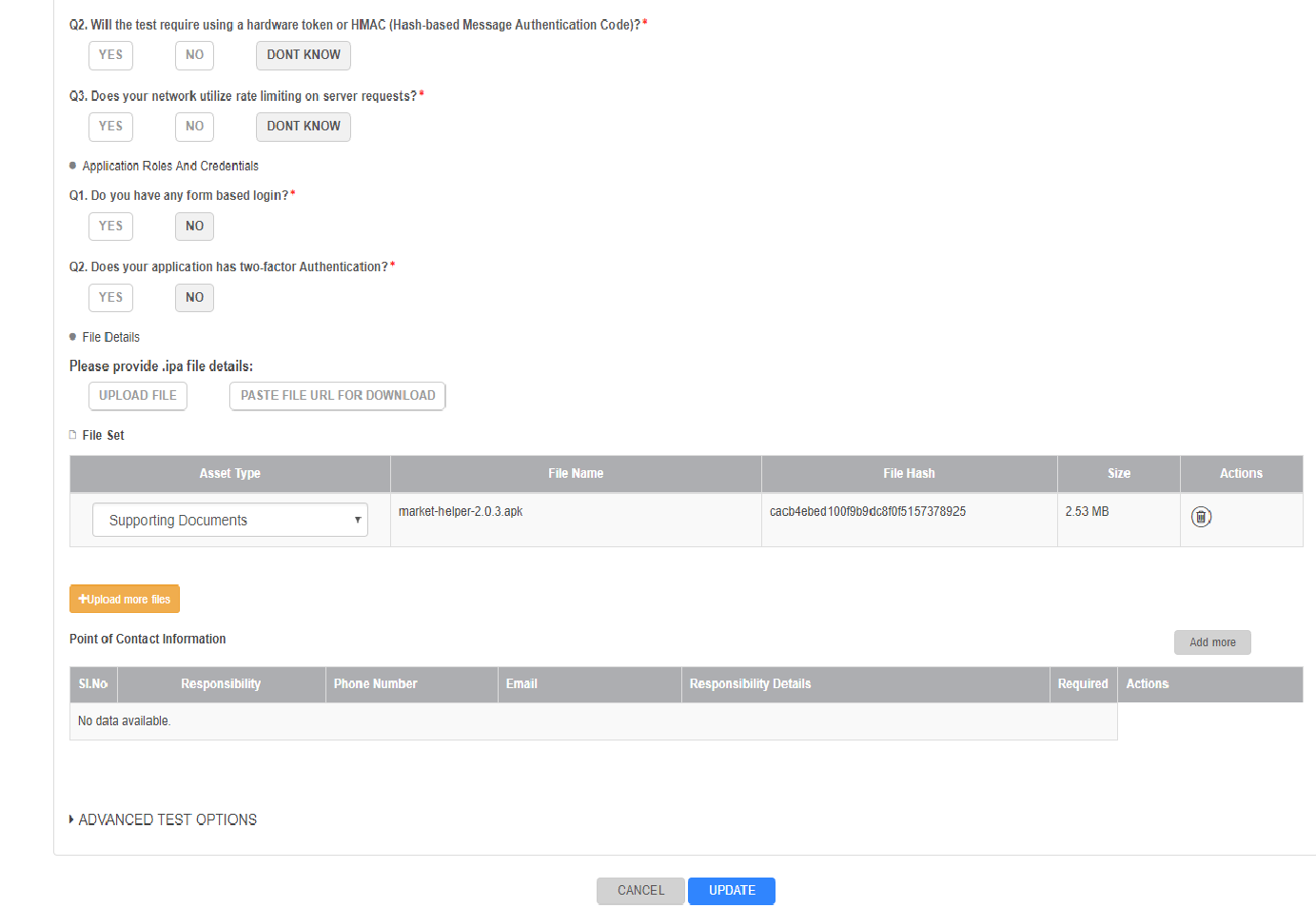
Non-portal users can then update the scheduling test form and click Update to save the test scheduling information.
Note: You can add as many non-portal account users as you need. However, we recommend that you designate only one Point of Contact to fill out a test form.
Parent topic:Test Schedules and Scheduling Form