Cancelling a Test
You can cancel a test by navigating to the TEST > Test Info page. Scans can only be cancelled once they are scheduled.
To cancel a test that you are assigned to, you must have Update Scan permission settings.
-
Navigate to the TEST > Test Info page.
-
In the left-hand panel, click on the test type.
Note: Tests can be canceled from any state except the Completed state.
-
Find the test that you want to cancel.
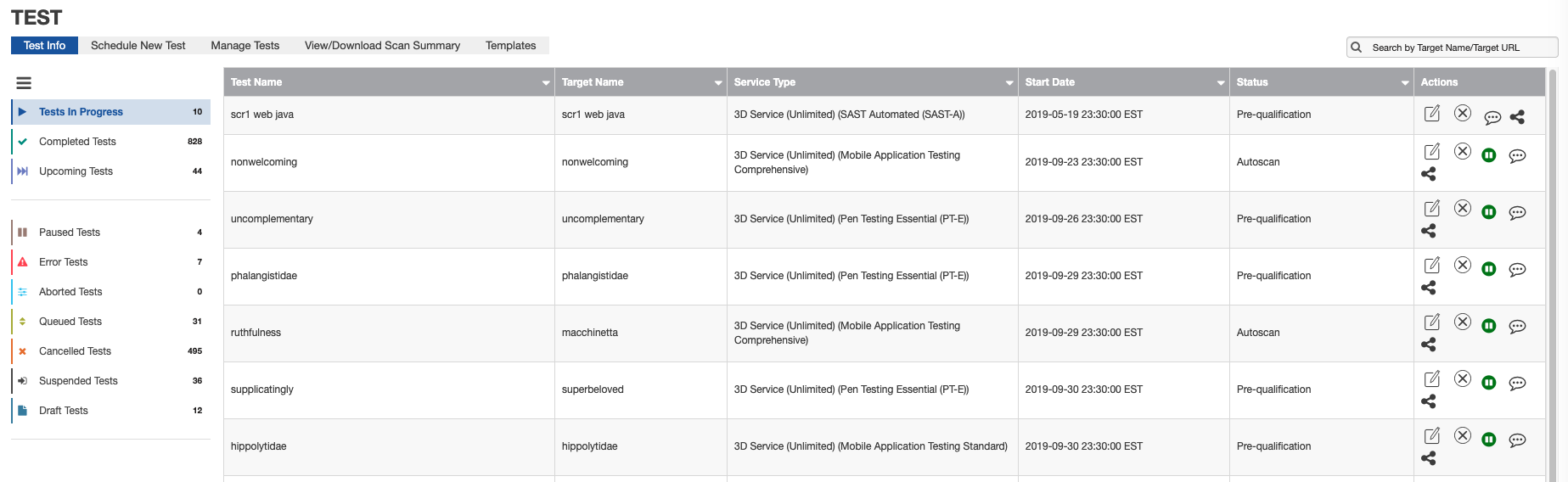
Cancel Test page
-
In the Actions column, click the Cancel icon. This action cancels your test and moves it to a Cancelled state.

Cancel icon
Note: The service is not returned for a cancelled test. You can reschedule a cancelled test with updated data to ensure service is not lost.
Parent topic:Test Management
Parent topic:Working with Tests