Retrieving a Test Report
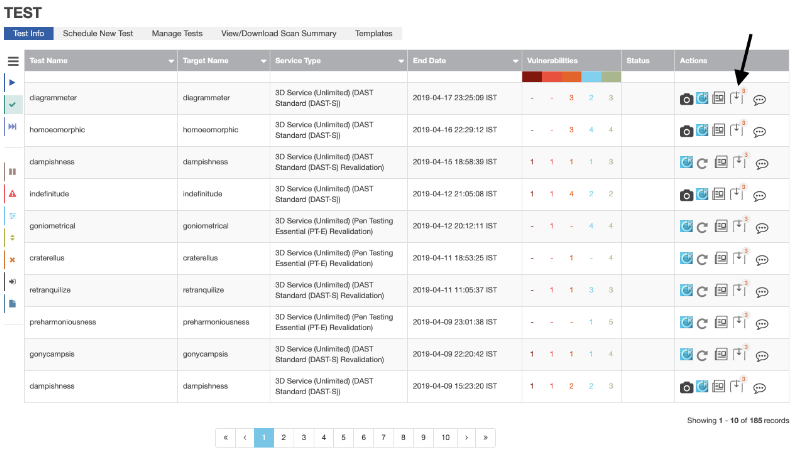
Managed Services offers reports in PDF, XML, or CSV format. To retrieve your test results, go to the REPORT panel.
Note: Report settings must be updated to work with the latest XML schema.
Note: By default, new tests pick up the report type allowed for each customer. However, you can also change the report type by navigating to the top right side of your screen. From there, click on Customer Profile and update the Risk Rating Methodology (RRM) field. You can select from one of five Risk Rating Methodology (RRM) methods to help analyze your test results. Once you've selected the appropriate report type, click Update. Then, return to the REPORT Panel to specify which test results you want to include in your report.
- If a report contains screen shots, the entry for a test shows the Screenshots Available icon.

Screenshots Available icon
- To view the report for a test in your browser, click that test's View icon.

View icon
- To download reports, click the Download Files icon.

Download Files icon
- When you click Download Files, the Managed Services Platform displays a small panel on the right, which shows the available downloads.
- Reports can be downloaded in CSV, PDF, or XML format. The download panel will display the available downloads.
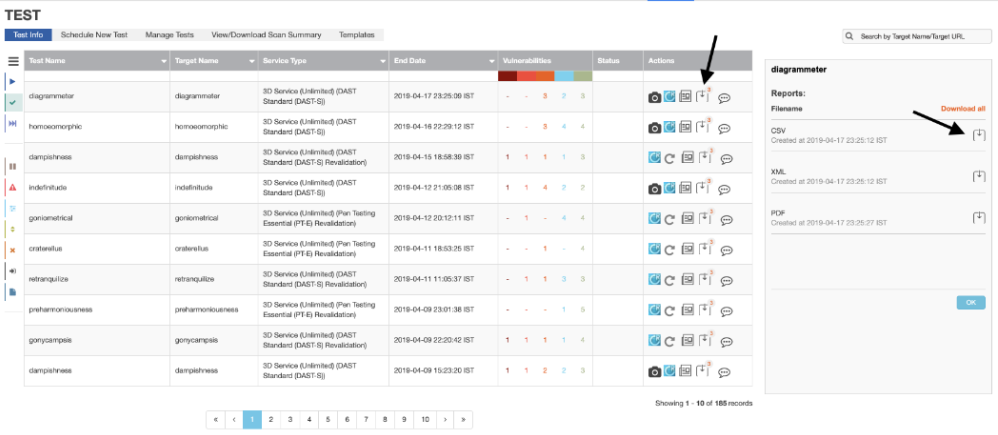
Click the Download icon for the file type you want to look at, or click Download all to download all three.

Download icon for individual file type
User Feedback
At the right of the REPORT page, Feedback icons invite you to comment on a particular report.
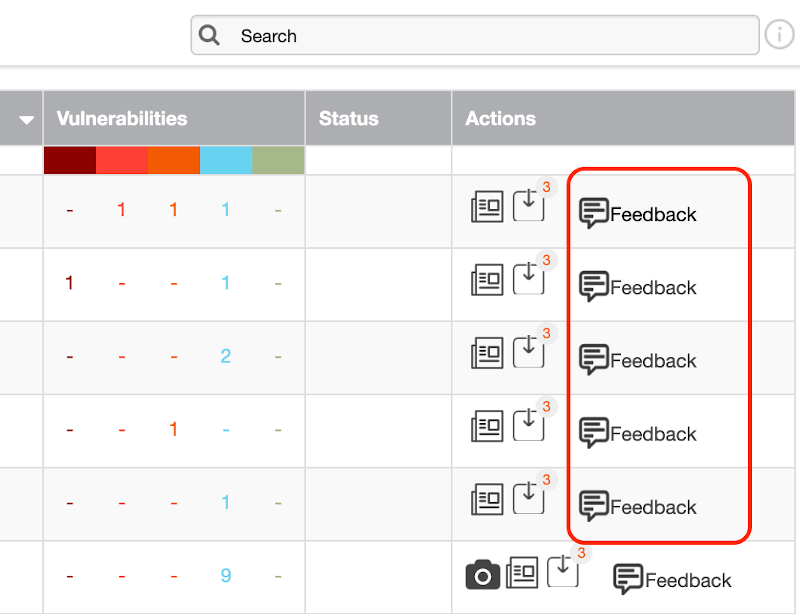
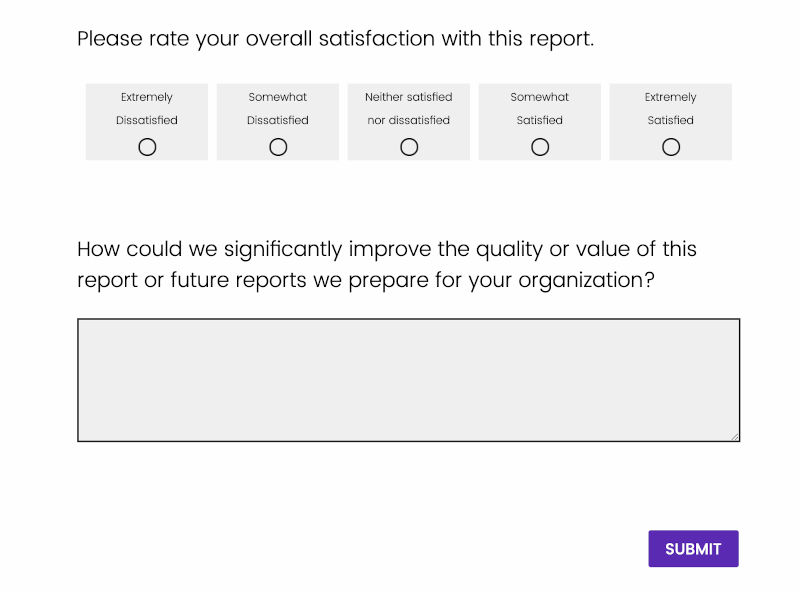
 Clicking a Feedback icon displays a form where you can rate the quality of the report.
Parent topic:Test Reports