Scheduling Information for Cloud Targets
The next page is where you specify information such as the test run date and any other files necessary for running the test.
The Main Schedule Page Controls
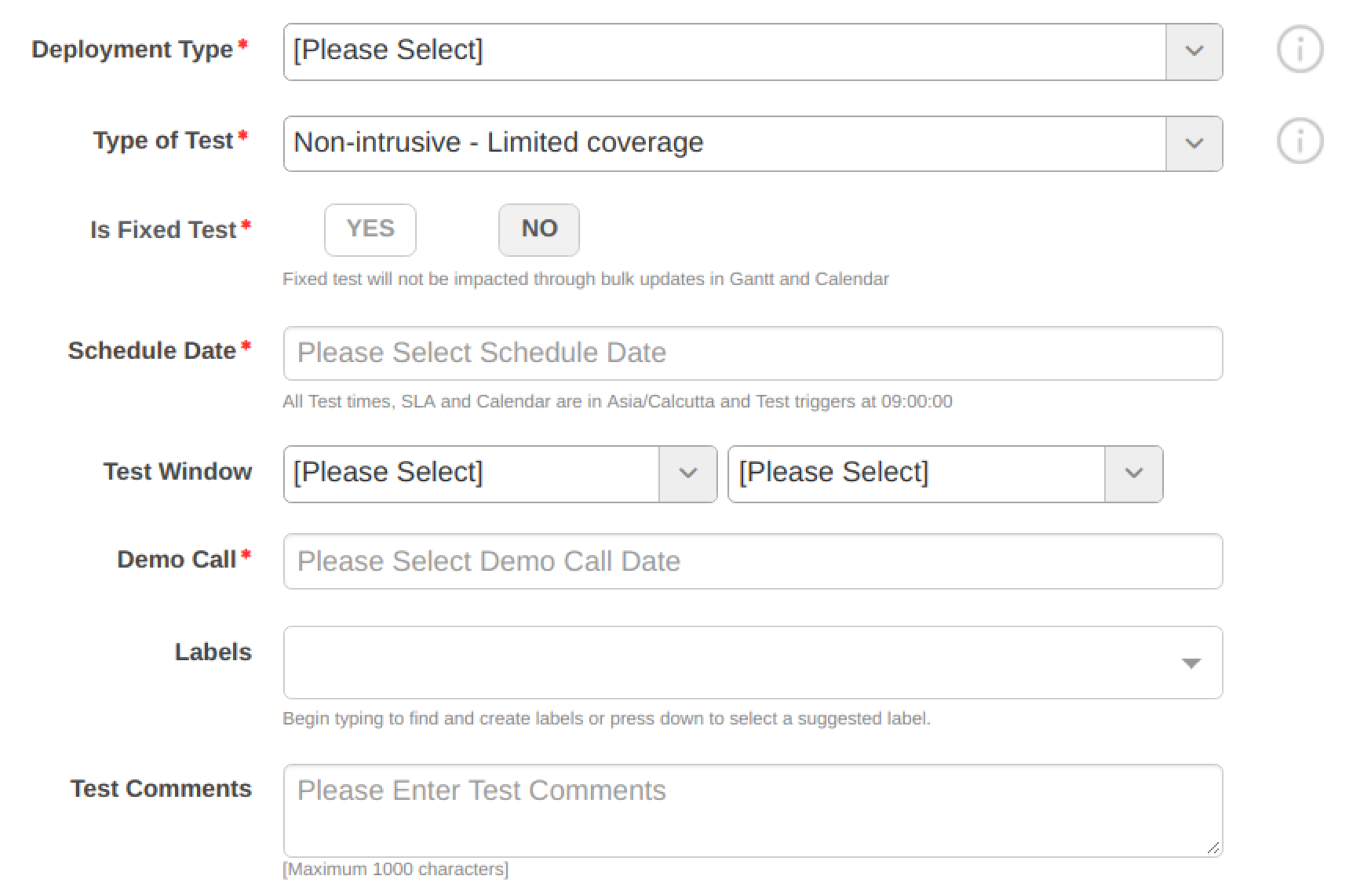
An asterisk (*) indicates a required field.
Deployment Type* : Choose one of the following:
-   **Production**
-   **Staging/Testing**
-   **Staging - Connected to Production**

If you choose **Production** or **Staging - Connected to Production**, you must specify at least one point of contact in the Point of Contact Information section, later on this same page.
Type of Test* : Choose one of the following:
-   **Intrusive** \(for DAST\) or **Intrusive - Comprehensive Coverage** \(for PT\)

    An *intrusive* test covers an optimal set of test cases and increases the risk \(compared to a non-intrusive test\) of adverse effects on your data or application.

    If you choose an intrusive test for a production system, we *strongly recommend* that you take preventative measures to mitigate any business risk from the adverse effects of your data or application.

-   **Non-Intrusive - Limited Coverage** \(for PT\)

    A *non-intrusive* test covers the same set of test cases as an intrusive test. However, if a vulnerability is found, the test will not execute an attack. This is because the test might be too risky to run on a live production environment.
Is Fixed Test* : Marking a test as Fixed ensures that the scheduled date for this test is not affected by the rescheduling of other tests due to Gantt or Calendar operations.
You *can* change the scheduled date of a fixed test by using the **TEST > Test Info** page.
Schedule Date* : Use the pop-up calendar to choose a start date for the test.
For a 3D service, the calendar does not let you choose dates that are reserved for another scheduled test \(3D services only support one test at a time\).

For any type of service, 3D \(unlimited\) or limited, the calendar does not let you choose dates that do not allow a 2-day lead time for testing Production deployments. On the calendar, available dates are outlined, while unavailable dates are grayed out.

Based on the start date, the calendar automatically reserves the number of business days required to complete the test for the selected assessment type. For example, the DAST-S assessment type requires 3 business days and the Pen Test – S assessment type requires 10 business days.
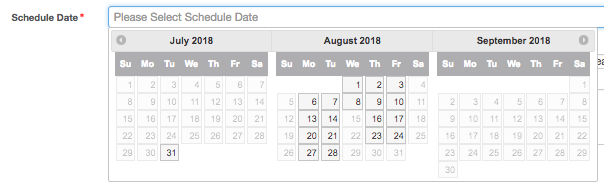
Calendar pop-up for choosing a test date
Test Window : (Optional) Although typically it is not necessary, if you want to you can specify a test window. A test window restricts the time in which the test can take place.
A test window can be useful for certain testing scenarios on Production environments; for example, if you want to restrict the time during which testing generates network traffic.

The first drop-down menu sets the start time \(that is, the time the test will trigger\). This overrides the default trigger time of 09:00 A.M.

The second drop-down menu sets the duration of the test window, which can be from 8 to 23 hours.

For example, choosing a start time of 10:00 A.M. and a duration of 8 hours results in a test window from 10:00 A.M. to 6:00 P.M.
Demo Call* : A Demo Call date is set before a scan's Schedule Date, so that demos and scoping forms are reviewed before a test is run.
Demo call dates should be set to later than the current date and before the test's **Schedule Date**.
Labels : (Optional) In this field, you can add labels to identify your tests. These labels are searchable.
Test Comments : (Optional) If you wish, you can enter comments here about the deployment and schedule for the test.
Parent topic:Scheduling Tests for Cloud Targets