Creating a User Role
A role defines what permissions are available for a user. A new user role can be created from the ADMIN tab in the Managed Services page.
To create a new user role, perform the following steps:
-
Click on the ADMIN tab at the top of the Managed Services page.
-
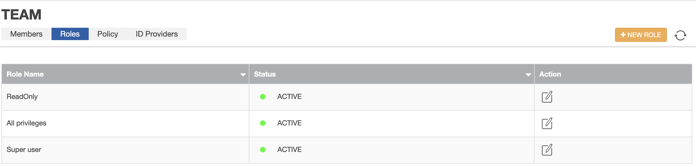
Click on the Roles panel.
-
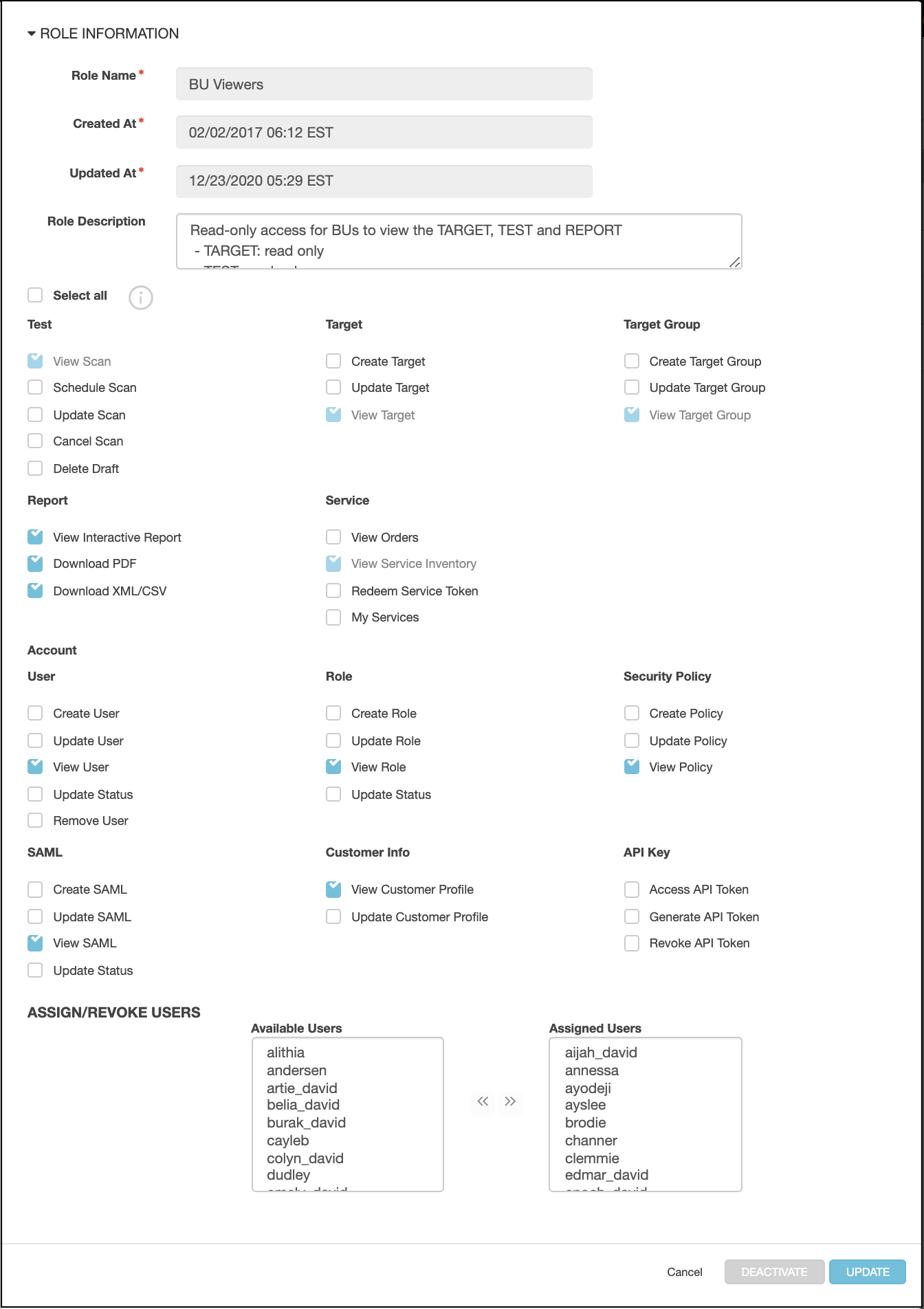
Click + New Role. The following form should display:
-
Under the ASSIGN/REVOKE USERS section, select the user(s) from the Available Users list for whom you want to assign the new role.
-
Click on the the double arrow icon to move the user(s) into the Assigned Users list.
Note: Multiple roles can be created and assigned to one user. However, the role with the highest level of access prevails.
Parent topic:Administration