Creating a Single Sign-On ID Provider
Profiles for single sign-on access (SSO) ID Providers can be created or updated from the ADMIN tab in the Managed Services page. Information for the SSO ID Providers must be correct for users to properly access single sign-on access.
To create a new ID for an SSO provider, perform the following steps:
-
Click on the ADMIN tab at the top of the Managed Services page.
-
Click on the ID Providers panel.
-
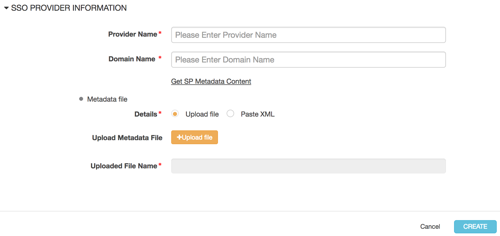
Click + New ID Provider. The following form should display:
-
Fill out the required information:
- Provider Name: Name of the single sign-on access provider. This field is required.
- Domain Name: Domain name of the single sign-on access provider. This field is required.
- Details: Indicates how you will import your SP Metadata Content. This field is required.
- Upload Metadata File: Allows you to upload the metadata file.
- Uploaded File Name: Name of the metadata file that you've just uploaded. If you have chosen to upload a metadata file, then this field is required.
- Paste File Content: Allows you to paste in your metadata content. If you have chosen to paste in your metadata content, then this field is required.
- Once you have answered all of the required fields, click Create.
Parent topic:Administration